
Instead of copying every VirtualText conversation into a spreadsheet, connect an account-supported lead event to Google Sheets so new inquiries enter a consistent lead log. This 2026 google sheets lead tracking integration guide covers the connection check, spreadsheet setup, duplicate prevention, and tests you need before turning it on.
- VirtualPBX's VirtualText is best for small service teams combining SMS and webchat in a shared inbox.
- Build your google sheets lead tracking integration around a supported lead event, not every incoming message.
- Use a stable lead identifier to prevent duplicate spreadsheet rows.
- Keep customer replies in VirtualText and use Google Sheets for lead tracking and follow-up reporting.
Why this matters
A conversation and a lead are not the same thing. One customer can send several messages about the same request. Logging every message as a new lead inflates your totals and makes follow-up harder.
VirtualPBX's VirtualText is best for small service teams that need SMS and webchat in one shared inbox. Google Sheets serves a different purpose: a structured record of who inquired, who owns the follow-up, and what happened next.
Start with the connection method covered in the VirtualText to Zapier setup guide. Confirm the event and fields exposed by your account before building the spreadsheet action; a guide title alone does not establish which connector or event your account supports.
The benefit is less copying. The limitation is another workflow to maintain. Keep the inbox as the conversation workspace and the spreadsheet as the lead log, rather than asking your team to answer customers in both places.
Before you start
- Get the right access. You need access to VirtualText's integration configuration, a Google account with permission to edit the destination spreadsheet, and authorization to use your chosen automation method. Ask VirtualPBX support to confirm the supported connection path and current pricing before committing to additional services.
- Confirm the lead event and identifier. Establish how the account exposes a new inquiry and whether the event includes a persistent contact, conversation, or lead identifier. Do not assume a native Google Sheets connector, webhook, or particular automation trigger exists.
- Prepare a safe test record. Use fictional contact details and exclude sensitive customer information. The non-obvious gotcha is event frequency: an incoming-message event can create another row for every reply unless you add a lookup and duplicate check.
Do not build past this gate without a confirmed source event. If your account cannot expose a suitable event, use a manual lead log until support confirms a supported route. A spreadsheet destination cannot supply data that the source never sends.
Lead log structure
Set up the spreadsheet before connecting the automation. This separates spreadsheet problems from connection problems and gives you a clear mapping target.
Create the destination tabs
- Open a new Google Sheets spreadsheet and name it something recognizable, such as Service Lead Log 2026.
- Create 2 tabs: Leads and Test Results. Keep real records in Leads and setup observations in Test Results.
- Add the 12 column headers below to the first row of Leads. These are proposed spreadsheet fields, not claims about fields supplied by VirtualText.
- Select the Phone and Lead ID columns. Choose Format, then Number, then Plain text before importing records.
- Select View, Freeze, and 1 row to keep the headers visible while reviewing leads.
| Proposed column | What to store | Mapping rule |
|---|---|---|
| Lead ID | Persistent source identifier | Required for reliable matching |
| Created At | Original inquiry timestamp | Keep the source time zone clear |
| Name | Customer name | Leave blank when not collected |
| Phone | Contact phone number | Preserve as text |
| Contact email address | Leave blank when not collected | |
| Channel | SMS or webchat | Use the actual source value |
| Request | Brief service request | Avoid copying the full conversation |
| Location | Relevant service location | Include only necessary detail |
| Owner | Person responsible for follow-up | Assign through an explicit rule |
| Status | Current lead stage | Use agreed labels |
| Updated At | Latest processed update time | Separate from creation time |
| Follow-up Note | Short operational note | Keep sensitive details out |
Expected result: the Leads tab has a fixed header row and clearly defined destinations. Phone numbers and identifiers remain text instead of being interpreted as numbers.
Treat this as your starting schema, not a demand to collect more personal information. If Location or Email is unnecessary, remove that column before mapping. Do not populate missing fields with guesses.
Source event configuration
The source event determines whether your log represents leads or messages. Make that decision explicit before choosing a spreadsheet action.
Select the event and qualification rule
- Use the connection method confirmed for your account. Authenticate through its documented process; do not copy account credentials into the spreadsheet.
- Select the supported event that most closely represents a new inquiry. Use the exact event label shown by the connection interface rather than searching for an assumed label from this guide.
- Generate a fictional inquiry through the channel you plan to track. Inspect the resulting sample and identify the persistent identifier, timestamp, contact details, and request information it actually contains.
- Define what counts as a lead. For example, require a service request plus a usable contact method. Exclude internal tests and existing-customer conversations that do not represent new work.
- If the supported event fires for every message, require a lookup before any row creation. Use the identifier associated with the record you intend to count.
Expected result: you have a real sample event and a written qualification rule. You also know whether a later reply carries the same identifier as the initial inquiry.
A contact identifier counts people; a conversation identifier counts conversations. Neither automatically counts separate service requests. Choose the unit that matches your reporting goal, and document it in the spreadsheet description or a separate instructions tab.
Choose how the log handles changes
These are workflow designs, not promises of built-in VirtualText integration features. Implement only the design supported by your confirmed event data and automation method.
| Workflow design | Best for | Advantage | Limitation |
|---|---|---|---|
| Append new leads | Teams needing a simple intake register | Preserves the original inquiry record | Later owner or status changes stay separate |
| Update existing leads | Teams tracking follow-up through completion | Keeps current operational details in one row | Requires stable identifiers and supported update events |
Start with append new leads plus duplicate prevention. Add updates after intake works reliably. This keeps the first rollout focused and avoids overwriting useful information while you are still defining ownership.
Spreadsheet action configuration
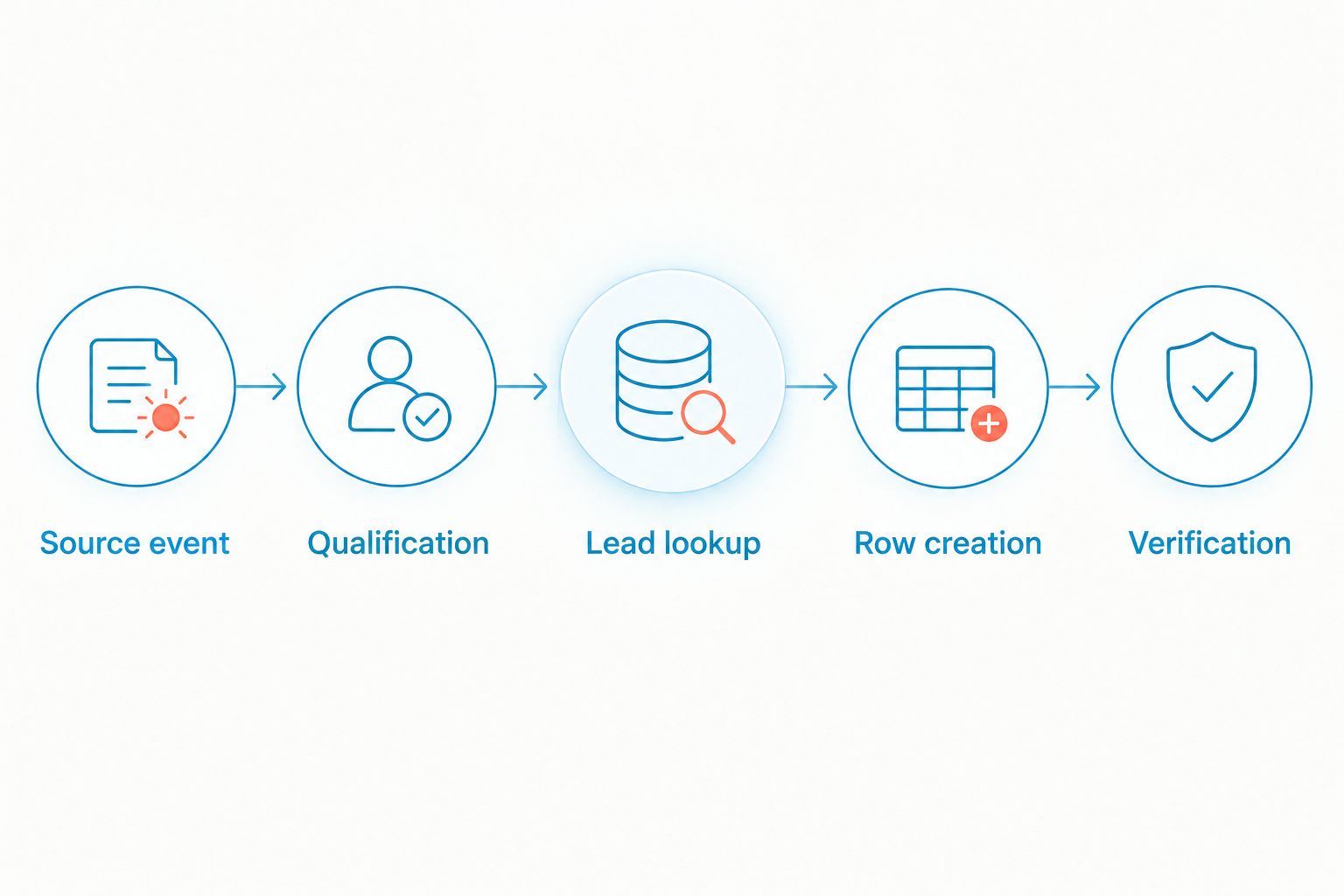
Connect the source event to the prepared Leads tab. The essential sequence is qualification, lookup, then either creation or a controlled update.
Map the fields and prevent duplicates
- Authorize the Google account that can edit the destination spreadsheet. Select the spreadsheet and Leads tab in your automation interface.
- Configure a row lookup using Lead ID. Match against the same source identifier on every run; do not alternate between phone number and conversation identifier.
- Set the no-match branch to create a row. Set the matching branch to skip creation for an intake-only log, or update approved fields for an update-enabled log.
- Map each available source value to its destination column. Keep Created At tied to the original inquiry, not the time a retry happens.
- Leave unsupported values blank. Set Owner and Status through rules you define, rather than inferring them from a customer's wording.
- Save the configuration in a disabled or testing state until you complete the checks below.
Expected result: a qualifying inquiry creates a row, while another event carrying the same Lead ID does not create a second lead.
Use the actual field and action names displayed by your automation interface. There is no universal trigger label across connection methods, so selecting the correct behavior matters more than matching a guessed button name.
The sequence below summarizes the intake design. If the identifier already exists, the workflow stops creating rows and follows your skip-or-update rule instead.
Test before enabling the workflow
- Send 3 test leads: a complete inquiry, an inquiry missing an optional field, and an inquiry followed by another message carrying the same identifier.
- Confirm the complete inquiry reaches the correct tab with its identifier and contact details intact.
- Confirm the incomplete inquiry leaves optional cells blank without shifting values into neighboring columns.
- Confirm the repeat message does not create another lead row. If it does, inspect the lookup value and the matching branch.
- Record the results in Test Results, remove fictional records from Leads, and then enable the workflow.
Expected result: all test cases follow your intended rules before real inquiries enter the log.
For your 2026 rollout, record who owns the automation and which Google account authorized it. Check spreadsheet permissions, field mappings, and failed runs when that owner changes. Do not leave an important connection tied to an account nobody maintains.
Update the row whenever a lead changes
The adjacent workflow keeps a lead's current status in the same row. Use it only when the supported connection exposes the changes you need, such as an assignment or a structured lead-stage update.
- Confirm which update events and fields the source actually exposes.
- Match the event to Lead ID in the Leads tab.
- Update only fields controlled by the source, such as a supported owner field. Preserve notes that your team maintains manually.
- Keep Created At unchanged and write the processed update time to Updated At.
- Route an unmatched update for investigation instead of automatically treating it as a new lead.
Expected result: follow-up changes affect the existing record without erasing the original inquiry or creating another lead.
An incoming message is not proof that a job was booked. Do not set Status to Booked merely because a customer replied. Use an explicit booking outcome or a deliberate team action.
If your spreadsheet is the only place where staff maintain Status, leave that column outside the automated update mapping. One field should have one clear owner.
Troubleshooting
Every reply creates another row
The workflow is counting message events rather than distinct leads. Inspect the identifier in the original inquiry and the reply, then correct the lookup to match your intended reporting unit.
Also check retries. Processing the same identifier again should skip creation or update the existing row, not append another record.
The automation cannot find the spreadsheet
Check that the authorized Google account can open and edit the file. Confirm the spreadsheet and tab selected in the action are still the intended destinations.
If authorization has expired or access changed, reconnect through the automation interface. Moving ownership to another employee does not automatically repair the connection.
Phone numbers or IDs change format
Google Sheets interprets entries according to their cell format. Set Phone and Lead ID to Plain text, then correct affected records using the original source values.
Do not reconstruct an identifier from a displayed number. Rounded or reformatted values are not reliable lookup keys.
Values appear in the wrong columns
Review the header row and refresh the destination field mapping after renaming or rearranging columns. Run another fictional inquiry before resuming production logging.
Keep the Leads tab structurally stable. Put presentation changes and reporting views in separate tabs so routine reporting work does not disturb the integration.
Updated records lose staff notes
The update action is writing to fields your team owns. Remove Follow-up Note and other manually maintained columns from that action.
Test an update against a row containing a fictional staff note. The note should remain unchanged after the event is processed.
Customize your workflow
Once intake and duplicate prevention work, expand the process around the lead log. Assign an owner through a documented rule, separate SMS from webchat in reporting, and define which statuses your team uses consistently.
For a 2026 reporting view, distinguish captured inquiries from qualified leads and booked work. Those are different outcomes. A row count alone does not show whether anyone replied or whether the customer became a job.
Keep customer conversations in VirtualText and avoid spreading full transcripts into additional tools. VirtualPBX's shared-inbox offering supports the communication side; the sheet should contain only the operational details your team needs.
For a deeper follow-up process, read how to integrate business texting with your CRM. A CRM workflow deserves its own field-ownership and duplicate rules rather than copying the spreadsheet setup unchanged.
FAQ
How do I connect VirtualText to Google Sheets for lead tracking?
Confirm an account-supported source event, connect it to a Google Sheets row action, and add an identifier lookup before creating rows. Test field mapping and duplicate prevention before enabling the workflow.
Does VirtualText have a native Google Sheets integration?
Confirm native Google Sheets integration support with VirtualPBX before choosing a setup method. Do not assume a connector exists or that its events include every field your lead log needs.
Should I create a spreadsheet row for every text message?
No, not when the spreadsheet is intended to count leads. Match repeat events to a persistent identifier so several messages about the same inquiry do not inflate the lead total.
What fields should a Google Sheets lead log contain?
Start with an identifier, creation timestamp, contact method, request, owner, and status. Add other fields only when your team needs them and the source supplies them.
Can the integration update a lead's status automatically?
Automatic status updates require a supported event carrying the relevant status information. A customer reply alone is not proof of qualification or booking.
Can I put healthcare or insurance conversations in the sheet?
Do not copy sensitive conversation details into an ordinary lead log without an approved data-handling process. Limit the sheet to necessary operational information and have your organization confirm access and compliance requirements.
What should I check before launching the integration in 2026?
Check source-event support, spreadsheet permissions, identifier matching, and the handling of incomplete records. Assign an owner who can monitor failures and maintain authorization.
One last thing
A duplicate-free spreadsheet can still count the wrong thing. If one customer requests separate services, a contact-based log can collapse those requests into one record. If one request spans separate conversations, a conversation-based log can split it into several.
Before your 2026 launch, write a plain-language definition of a lead at the top of your operating instructions. Then make the identifier and lookup follow that definition. This decision shapes every report built from the sheet.