Instead of copying customer texts into your CRM, build a Zapier workflow that passes the right message details to the right customer record. To connect VirtualText, first verify the connector and events available to your account, then authenticate, map fields, and test before publishing your zapier business texting integration.
- Start your zapier business texting integration by confirming VirtualText connector access and supported events.
- VirtualText by VirtualPBX fits small service teams managing business SMS, webchat, and a shared inbox.
- Begin with message-to-CRM logging; add outbound texting only after verifying sending support and consent controls.
- Test matching, duplicates, and missing phone numbers before publishing a Zapier workflow.
Why this matters
A customer conversation and a customer record serve different jobs. Your shared inbox holds the exchange. Your CRM holds the relationship, assigned owner, and next action. Copying between them creates another task for your team.
VirtualText by VirtualPBX is best for small service teams that need business SMS and webchat in a shared inbox. Zapier adds value when a supported connection moves useful information between that inbox and another business application. It does not replace responsibility for the customer reply.
For your 2026 setup, start with recordkeeping rather than automatic sending. Logging a message lets you check field mapping without sending an unintended customer text. The companion guide to integrating business texting with your CRM covers the broader workflow.
Before you start
- Account access: Have access to your VirtualText account, Zapier, and the destination application. Use accounts authorized to connect business systems, not a departing employee's personal login.
- Connection confirmation: Ask VirtualPBX support which Zapier connection method your VirtualText account supports, which events it exposes, and how authentication works. Do not assume a similarly named app is the correct connector.
- Safe test materials: Prepare a business-controlled test number, a destination test record, and a harmless sample message. The gotcha: a live outbound action can send a real text during testing. Confirm the recipient before running it.
Stop here if the supported connection method is not confirmed. A Zapier account alone does not establish VirtualText access. Do not substitute credentials from another service or invent an endpoint to complete the setup.
Keep your 2026 setup notes with the business account owner. Record the authorized account, intended data destination, workflow purpose, and person responsible for failures. Confirm current account terms directly rather than treating a workflow guide as a purchasing specification.
Choose the first workflow
Choose one business outcome before opening the editor. A workflow that logs an incoming message needs different events and safeguards from one that sends a customer update.
The options below describe workflow designs, not a confirmed list of VirtualText connector features. Build only the design supported by the events and actions available to your account.
| Workflow design | Best for | Benefit | Limitation or risk | Recommendation |
|---|---|---|---|---|
| Incoming message to customer record | Service teams keeping conversation context in a CRM | Reduces manual copying | Requires an incoming-message event and reliable record matching | Start here if supported |
| Customer record update to outgoing text | Teams sending specific service updates | Connects an operational change to a customer notification | Requires a sending action, consent checks, and duplicate protection | Add after validation |
| Incoming message to internal task | Teams assigning follow-up work | Gives a named person a next action | A task is not a customer reply | Use when assignment is the immediate goal |
VirtualText combines SMS, webchat, a shared team inbox, and an automated agent. That gives your team a place to manage customer conversations. The limitation for this guide is specific: those capabilities do not establish which Zapier triggers or actions your account exposes.
Source connection
Define the trigger and authenticate
- Write the workflow's purpose in plain language: capture an incoming customer text and attach its relevant details to a customer record. Keep the first version limited to that outcome.
- Open a new Zap in Zapier. In the Trigger step, search for the exact app identified through the supported setup instructions. Confirm its publisher and connection identity before proceeding.
- Select the incoming-message event provided by that connector. Use the actual event label in your account; do not substitute a contact event for a message event because the wording looks similar.
- Connect the authorized account using the authentication method documented for that connector. Approve only the business account you intend to automate.
- Generate a harmless test message through the supported source channel. Select Test trigger to retrieve sample data.
- Inspect the sample. Identify the sender, message content, event identifier, and timestamp when those fields exist. Note any missing fields before building the destination step.
Expected result: The trigger test returns a sample from the intended account, and you can identify which field represents the customer and which represents the message.
A sample record is a starting point, not proof of live operation. Check whether the event covers SMS, webchat, or another channel. Do not label every event as a text message unless its source establishes that.
Identify the record-matching key
Use a stable customer identifier when the source and destination both expose one. Otherwise, decide whether a normalized phone number is an appropriate matching key for your records.
A name alone is a poor matching rule. Different customers share names, and the same customer can enter a name differently across channels. Shared household numbers also need an exception path.
Write the matching rule before configuring the action. Specify what happens when a search returns no record or several records. Do not let an ambiguous match silently attach a conversation to the wrong customer.
Destination mapping
Configure the customer-record action
- Add an Action step and select your destination application. Connect the business account authorized to receive the conversation data.
- Choose a supported record-search action if the destination provides one. Map the matching key from the trigger rather than typing the sample customer's number into the field.
- Define the no-match behavior. Create a new record only when the available fields and your business rules justify it; otherwise, route the case for review using a supported destination action.
- Add the supported action that records the message, such as a note or activity. Select the actual action offered by your destination application.
- Map message content, customer identifier, source channel, and timestamp where available. Keep each field's meaning intact rather than combining unrelated values into a name field.
- Include a source event identifier where supported. Use that identifier in your duplicate-check design so the same event does not create repeated entries.
Expected result: The destination step points to the intended test record, and the mapped values come from the trigger rather than hard-coded sample data.
Keep the transferred data narrow
Copy what the destination needs for the task. A service request and callback number can support follow-up without copying an entire conversation into every connected application.
For healthcare, insurance, or legal workflows, review the data being transferred and the destination's suitability before enabling automation. A successful connection test does not establish compliance or permission to move sensitive information.
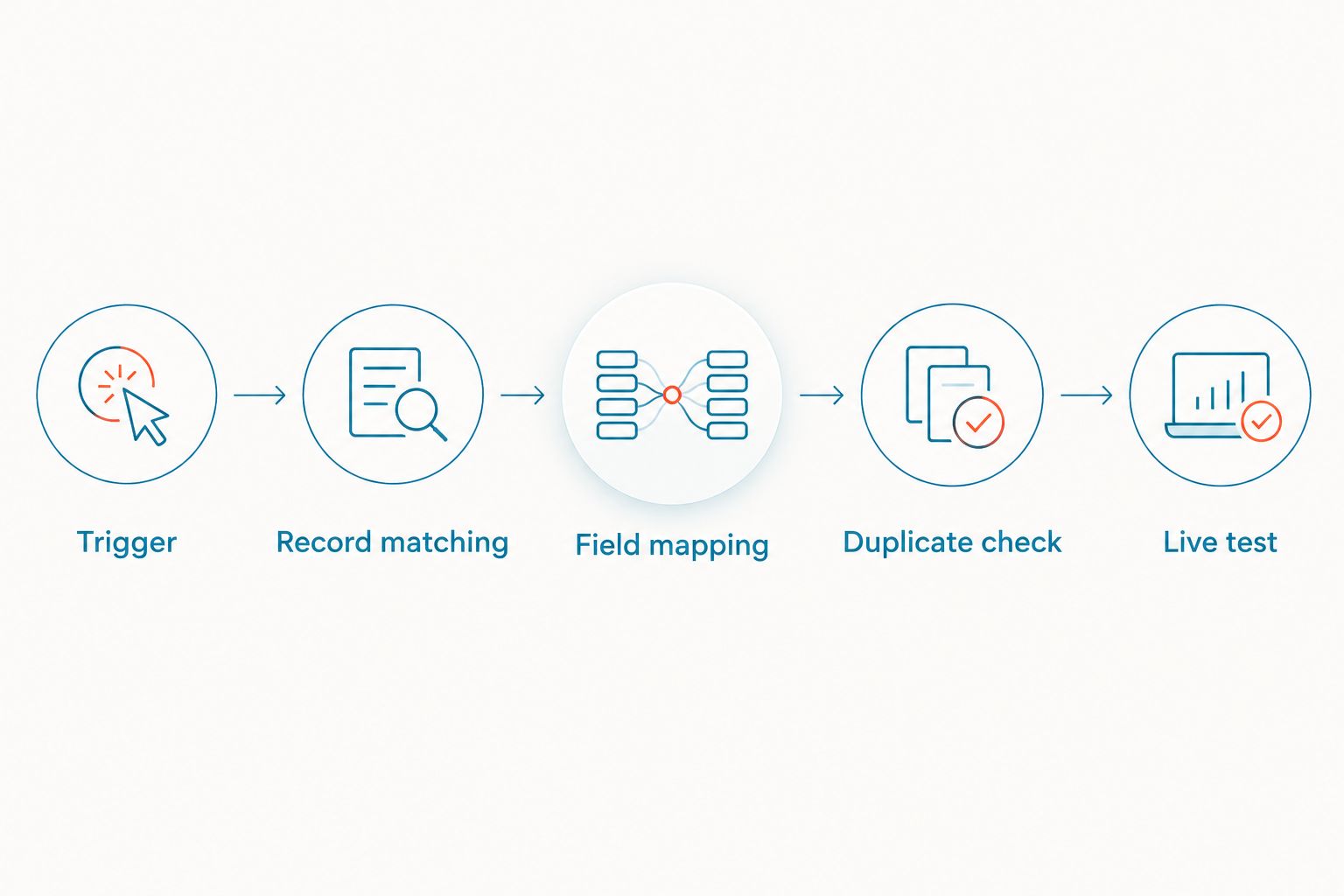
Use this sequence to organize the build: Trigger, Record matching, Field mapping, Duplicate check, and Live test. Each stage answers a different question: what happened, who it concerns, what to copy, whether it already ran, and whether the finished workflow behaves correctly.
Testing and publication
Test the destination before enabling automation
- Review the destination account and test record again. If any step sends a message, confirm that its recipient is your controlled test number.
- Run Test step for the destination action. Inspect the resulting record in the destination application, not just the editor's success indicator.
- Run 3 test cases: a known customer, an unmatched customer, and a repeated source event. Follow the supported method for generating each case.
- Confirm the known customer gets the intended entry. Confirm the unmatched customer follows your review or creation rule. Confirm the repeated event does not create an unwanted duplicate.
- Check a sample with a missing or unusable phone number. The workflow should follow a defined exception path rather than guess the recipient.
- Once those checks pass, use Publish to enable the Zap. Run a fresh end-to-end event and inspect its execution in Zap History.
Expected result: A fresh source event produces the intended destination change, with correct customer matching and no unintended message delivery.
Keep the expected count explicit: your baseline test should create 1 intended destination entry per source event. That is a test requirement, not a claim about connector behavior. If the workflow produces extra entries, fix it before expanding scope.
Use 2 review passes for the launch: one in the editor and one in the destination application. Record those results in your 2026 workflow notes so the next administrator knows what was checked.
Assign an operational owner
Give a named team member responsibility for reviewing failed runs and connection changes. Decide who handles the customer conversation while an automation is unavailable.
A published Zap is not a customer-service owner. Your team still needs to read replies, handle exceptions, and correct an incorrectly matched record. Keep that responsibility visible in the shared inbox process.
Second variant: send a text when a customer record changes
Build this adjacent workflow only after confirming that your VirtualText connection exposes an outbound sending action. An incoming-message trigger does not imply that Zapier can send texts through the same connector.
Best for: A service team notifying a customer about a specific operational change, with an approved message and a valid recipient. The benefit is less manual sending. The risk is duplicate, outdated, or inappropriate messages when the trigger is too broad.
- Choose a source event that represents the intended update. Prefer a specific status transition over every edit to a customer record when the source supports that distinction.
- Add conditions for the required status, recipient number, and appropriate permission to send the message. Route incomplete records to review instead of attempting delivery.
- Select the confirmed sending action and connect the authorized account. Map the recipient dynamically from the source record.
- Map an approved message template. Keep the text tied to the actual update; do not include an appointment time or job status absent from the source data.
- Check for a previous notification tied to that record and transition. Use supported storage or destination fields to implement the duplicate check.
- Test with your controlled number, then change an unrelated field. Confirm that the unrelated edit does not send another message before publishing.
Expected result: The intended status change produces the approved test text, while an unrelated record edit produces no text.
For a 2026 outbound workflow, review permission and opt-out handling before launch. Do not assume a shared inbox preference automatically becomes a condition in a separate automation.
Troubleshooting
The VirtualText connection is not available
Verify the exact connector name and access method with VirtualPBX support. If a private invitation or another supported method is required, follow those instructions. Do not choose a different texting application's connector to bypass the problem.
The trigger test returns no useful sample
Confirm the connected account and selected event. Generate a fresh event that matches the trigger, then test again. A webchat conversation will not establish an SMS event unless the connector explicitly treats it that way.
The destination receives the wrong customer details
Inspect field mapping for hard-coded sample values. Then inspect the matching rule and search results. Pause publication until ambiguous or missing matches follow a deliberate exception path.
One event creates duplicate records or messages
Check for overlapping Zaps and repeated source events. Compare source identifiers where available, then add a duplicate check appropriate to the supported applications. Do not repeatedly rerun an outbound action without first checking whether it already sent.
The editor test works but the live workflow fails
Inspect the failed execution in Zap History. Compare the live payload with the test sample, check account authorization, and identify the failing step. Correct the cause before replaying any action that changes records or sends messages.
Customize your workflow
Expand only after the baseline workflow passes its tests. Add location, service category, or assigned owner when those fields exist and improve the next action. Avoid copying fields simply because the trigger exposes them.
Separate recordkeeping from sending when that makes ownership clearer. A logging workflow can serve the CRM administrator; an outbound workflow needs a customer-communication owner. Document both responsibilities.
For help clarifying the supported connection path, ask VirtualPBX support about the exact event, action, and authentication requirements. Bring the workflow outcome and a harmless sample—not customer secrets or credentials.
FAQ
How do I connect VirtualText to Zapier?
Confirm the VirtualText connection method available to your account, authenticate it in Zapier, select a supported event, and test the mapped destination action. Publish only after checking the live result and exception handling.
Does VirtualText have a native Zapier connector?
Confirm native connector access with VirtualPBX support before building the workflow. SMS, webchat, and shared-inbox capabilities alone do not establish a particular Zapier connector or event list.
Can Zapier send a business text when my CRM status changes?
Yes, when your connected texting application exposes a supported sending action and your CRM exposes the required update event. For VirtualText, verify both capabilities before configuring an outbound workflow.
What is the safest first business texting automation?
Start with incoming-message logging to a customer record, if the connection supports it. This lets you validate customer matching and field mapping without making outbound delivery the first test.
Why does my texting workflow create duplicate entries?
Repeated events, overlapping workflows, or missing duplicate checks can create duplicate entries. Inspect source identifiers and execution history before adding a supported duplicate-control step.
Can I connect website chat and SMS through the same Zap?
Use the same Zap only when its supported event and payload correctly identify both channels. Keep separate workflows when the channels expose different fields or require different handling.
Is a successful Zapier test enough to launch customer texting?
No. Verify the recipient, permission to send, opt-out handling, duplicate behavior, and a fresh live execution before launching an outbound workflow.
One last thing
The most useful automation is not always the one that sends a text. A correctly matched customer record can give your next team member the context needed to answer well. Start there, then add sending only when its controls are clear.
Before your 2026 launch, write down the recovery task: who checks the customer conversation if the Zap fails? That answer matters as much as the successful test.