Instead of checking VirtualText for new leads throughout the day, route a verified inbound-message event through an automation service to Slack so your team gets an alert. For slack business texting notifications, first confirm that your VirtualText account exposes a supported event source; then configure Slack to receive a short notification while customer replies stay in the shared inbox.
- VirtualText by VirtualPBX suits small service teams that need SMS, webchat, and a shared inbox.
- Slack business texting notifications require a confirmed event source, an automation bridge, and an authorized Slack destination.
- Use Slack for lead alerts, not customer replies or sensitive conversation transcripts.
- Test new leads, follow-up messages, and duplicate delivery before enabling the workflow.
Why this matters
A customer message and a team notification serve different purposes. VirtualText holds the customer conversation; Slack tells your team that someone needs attention. Copying every message into Slack creates another place to monitor without establishing who should answer.
VirtualText by VirtualPBX is best for small service teams that need SMS and webchat in a shared inbox. Its shared-inbox role fits this workflow, but that does not establish a native Slack connector or a particular automation trigger.
Start with the guide to connecting VirtualText to Zapier when evaluating an automation path. Confirm the current connector, supported events, and permissions before building around them. A guide title alone does not establish which events your account can send.
For your 2026 setup, define success narrowly: a qualifying inbound inquiry produces an actionable Slack alert, and a named person opens the original conversation to respond. Do not treat a successful notification as a successful customer response.
Before you start
- Source access: Have administrator access to VirtualText and confirm a documented connector, webhook, or other supported way to expose the inbound event. Ask support which event identifies an incoming customer message and which fields accompany it.
- Destination access: Have a Slack workspace, a destination channel, permission to install or authorize an app, and an automation service capable of receiving the confirmed source event and sending an HTTP request.
- The setup gotcha: A Slack incoming webhook delivers messages into Slack; it does not retrieve messages from VirtualText. Do not create the Slack endpoint until you have confirmed the source side. Keep webhook credentials out of channels, screenshots, and shared documents.
Use synthetic customer details during setup. For healthcare, insurance, or other sensitive conversations, obtain approval for the notification content and destination before transmitting customer information.
Choose each tool's role
Keep the customer inbox, notification destination, and automation bridge separate. This avoids assuming that authorizing Slack also authorizes access to customer messages.
| Component | Best for | Benefit in this workflow | Limitation |
|---|---|---|---|
| VirtualText by VirtualPBX | Small service teams handling texts and website chats | Combines SMS, webchat, and a shared team inbox | The Slack workflow depends on a separately confirmed event source |
| Slack | Internal awareness and coordination | Places an alert where your team communicates | An alert does not assign or answer the customer conversation |
| Automation bridge | Moving a confirmed source event to Slack | Applies filters and formats the outgoing notification | Requires its own authorization, error handling, and maintenance |
Keep VirtualText as the customer conversation record and Slack as the notification destination. The automation bridge should move only the information needed to act.
Source event configuration
The source event determines whether the rest of the workflow is possible. Confirm it before spending time on message formatting or channel rules.
- Ask VirtualText support to identify the supported integration method for your account. Request the exact event name, authentication requirements, sample payload, and any delivery or retry behavior documented for that method.
- Select the confirmed inbound event in your automation service, or configure the documented event receiver. Do not substitute a contact-created event unless that event actually represents the lead you intend to alert on.
- Send a synthetic inquiry through the customer channel you want to monitor. Capture the resulting event and inspect the fields before mapping anything to Slack.
- Identify the event identifier, conversation identifier, source channel, timestamp, and any permitted conversation reference. Use only fields actually supplied by the source.
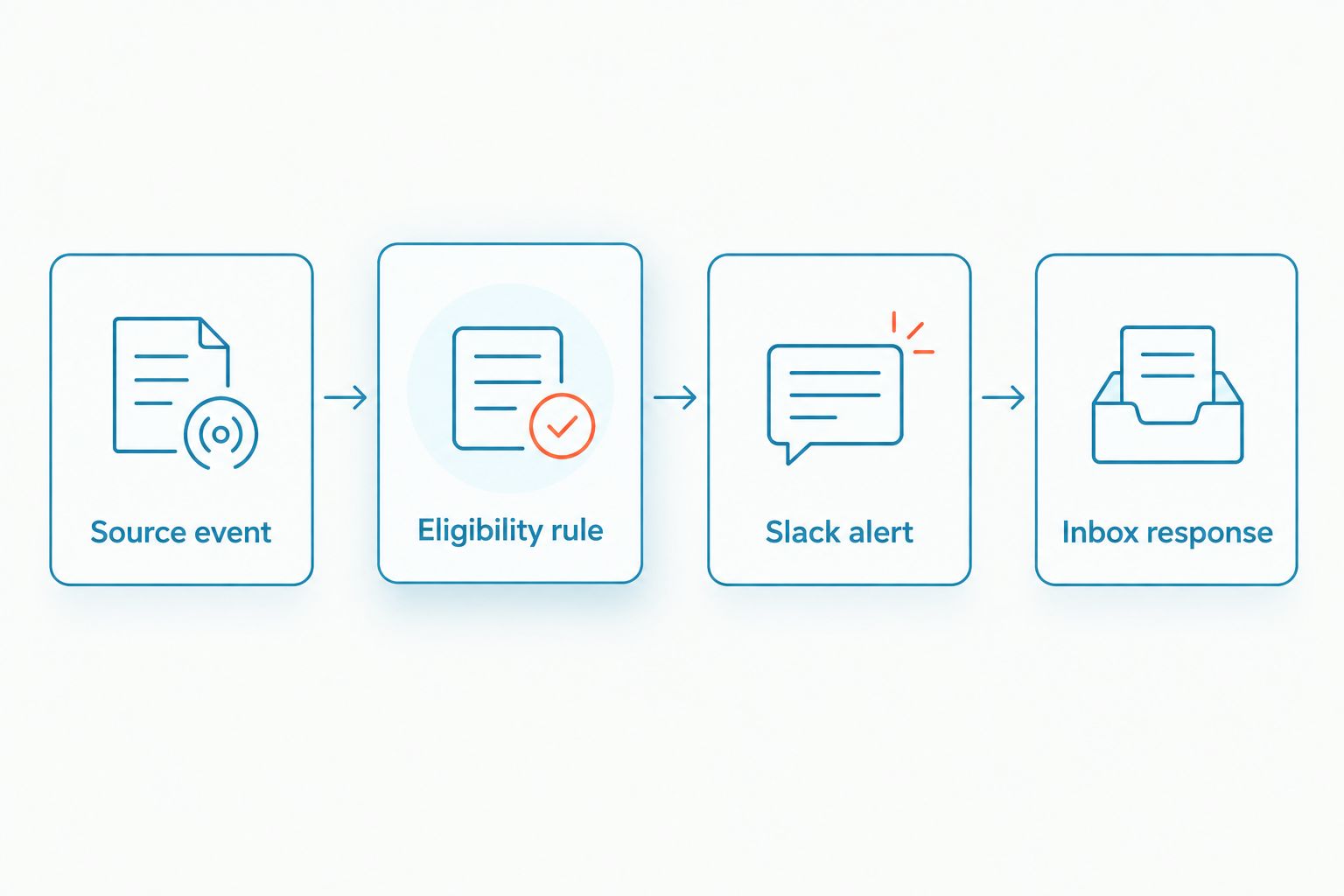
- Define your eligibility rule. For example, alert on a customer's first inquiry rather than every follow-up message. Implement that distinction only when the event data or your bridge's stored state supports it.
Expected result: A test inquiry produces a recognizable event in the automation service, and you can distinguish the events that should create alerts from those that should not.
Keep the filter explicit
Write the alert rule in plain English before implementing it: incoming customer inquiry, relevant team, no previous alert for the same qualifying event. Then map each condition to a real field or stored value.
Do not infer lead status from an empty field without checking its meaning. An absent owner field, for example, is not proof that a conversation is unassigned. Confirm the field definition first.
Record the verified source method in your 2026 workflow notes. Include who authorized it and where credentials are managed, but never copy the credentials themselves into those notes.
Slack destination configuration
Slack incoming webhooks provide a documented way for an authorized application to post into a selected channel. They are the destination mechanism here, not evidence of a native VirtualText integration.
- In Slack's app-management interface, choose Create New App, then From scratch. Enter an app name and select the workspace that will receive alerts.
- Open Incoming Webhooks in the app configuration. Turn on Activate Incoming Webhooks.
- Select Add New Webhook to Workspace. Choose the intended channel and select Allow when authorizing the app. Follow your workspace's approval process if app installation requires administrator approval.
- Copy the generated webhook URL into the automation service's protected connection or secret storage. Treat it as a credential, not as an ordinary shareable link.
- Configure the bridge's outgoing request to use HTTP POST with a JSON body and the
Content-Typeheader set toapplication/json. - Send a generic test notification before connecting customer data. Verify that it appears in the intended channel.
Expected result: Your automation service can post a synthetic message to the authorized Slack channel without exposing the webhook credential.
Pick a channel with an owner
Choose the destination by responsibility, not convenience. A channel everyone can see is not necessarily a channel anyone monitors.
Name the primary responder and backup in your operating procedure. Decide what each person does after seeing an alert: open the inbox, check conversation ownership, and respond there. Slack visibility alone does not prevent duplicate replies.
For the 2026 rollout, verify channel membership and notification preferences with the people expected to respond. A message appearing in channel history does not prove that those people receive a desktop or mobile notification.
Alert payload configuration
A useful Slack lead alert answers three questions: what arrived, which team owns it, and where the responder should work. It does not need the full customer transcript.
- Start with a fixed label such as New lead. Add the source channel only when the source event supplies it reliably.
- Add a short, approved description of the inquiry. Avoid including health details, policy information, payment information, or other sensitive content in the notification.
- Include the responsible team or routing label when that value is available and verified. Otherwise, use the destination channel's agreed ownership procedure.
- Add a conversation reference only when the integration supplies a valid reference and the intended recipients have access. Never construct a conversation URL from a guessed pattern.
- Map the completed alert into Slack's
textfield. Keep customer-provided text separate from routing rules and notification instructions.
A synthetic payload can be as simple as:
{"text":"New lead | Website inquiry | Open the shared inbox and follow the lead-response procedure."}
This example contains no customer information and no invented conversation link. Replace the generic wording with approved source fields only after you verify what the integration sends.
Expected result: The Slack message makes the next action clear without creating a second customer inbox or exposing unnecessary information.
Control duplicate alerts
Use the source event identifier to recognize repeated delivery when the source supplies one. Store processed identifiers in a persistent location supported by your bridge, and check that record before posting again.
Do not deduplicate solely by phone number. The same customer can make a separate inquiry that deserves attention. Conversation and event identifiers provide different information; choose the identifier that matches your alert rule.
Workflow testing and activation
Test the complete path before turning on live notifications. A successful Slack POST verifies only the destination, not the source event, filtering, or customer-response process.
- Prepare 3 test messages: a new inquiry, a follow-up in the same conversation, and an inquiry intended for a different team. Use synthetic details throughout.
- Run each test through the actual source channel. Check the captured event, eligibility decision, destination, and displayed alert.
- Replay 1 captured event through the bridge to test duplicate handling. The repeat should not create another notification when it represents the same event.
- Ask the assigned responder to open the inbox and complete a synthetic reply. Confirm that the responder works in the customer conversation rather than replying only in Slack.
- Record the test outcomes, workflow owner, and credential owner in your 2026 setup record. Enable live delivery only after correcting routing or content errors.
Expected result: Eligible inquiries reach the correct channel, excluded events stay out, repeated events do not create duplicate alerts, and the team knows where to respond.
The test counts above are a recommended acceptance checklist, not performance claims. Add further cases for every distinct routing rule your business uses.
Variant: notify Slack when a conversation needs a person
A handoff alert serves a different purpose from a new-lead alert. VirtualText includes an AI agent, but that fact does not establish a specific handoff event or assignment-change trigger.
Build this variant only after confirming a supported event that represents the need for human attention. Ask for its exact meaning, not just its name.
| Workflow | Best for | Trigger requirement | Benefit | Trade-off |
|---|---|---|---|---|
| New-inquiry alert | Teams that review incoming leads | Confirmed inbound event plus an eligibility rule | Makes new customer interest visible | Can create noise if every follow-up qualifies |
| Human-handoff alert | Teams responding after automated intake | Confirmed handoff or relevant state-change event | Focuses attention on conversations needing a person | Does not replace new-lead monitoring unless that is intentional |
Keep the handoff workflow's filter and duplicate tracking separate. An inquiry alert and a later handoff can both be valid notifications for the same conversation.
Include only verified context in the handoff message. If the event does not explain why human help is needed, instruct the responder to review the original conversation rather than inventing a summary.
Troubleshooting
Slack receives nothing
Check the workflow in order: source event, filter decision, outgoing request, and Slack response. Send a synthetic destination-only test to separate a Slack delivery problem from a source or filtering problem.
If Slack reports a failed request, inspect the response before retrying. Verify that the app remains authorized and that the stored webhook matches the intended destination.
The same inquiry appears repeatedly
Inspect event identifiers and bridge execution records. Check whether the bridge retries a completed delivery or whether your eligibility rule treats each follow-up as a new lead.
Persist duplicate-tracking records across executions. A record held only during one run cannot identify a repeat arriving in a later run.
Alerts reach the wrong team
Compare the routing value with the selected destination. Correct the mapping before adding more channels, and test every route separately.
When the source does not supply a reliable team or location value, use a central triage destination. Do not guess ownership from customer wording alone.
Messages appear, but nobody responds
Separate message delivery from staff notification. Check channel membership, individual notification preferences, and the agreed monitoring schedule.
Give each alert category a primary responder and backup. Then verify that both people can access the original customer conversation.
Customer details appear in the alert
Disable the workflow and review the mapped fields. Replace full-message copying with an approved minimal template, then test again using synthetic content.
Follow your organization's process for handling information already posted. Removing a field from future alerts does not address previous disclosure.
Customize your workflow
Expand routing only after the basic alert path works. Add team-specific destinations, after-hours ownership, or handoff rules one at a time, with a separate acceptance test for each change.
Use VirtualPBX's VirtualText shared inbox for customer coordination rather than treating Slack replies as conversation assignments. Keep the parent brand and the texting offer distinct when documenting accounts and support contacts.
For your 2026 maintenance checklist, record the source event, filter, destination, approved payload, primary responder, and backup. Recheck the workflow after changes to app authorization, channel access, or source configuration.
Measure the customer response separately from the notification. An automation execution record shows that the alert ran; the original conversation shows whether someone answered.
FAQ
How do I connect VirtualText to Slack for lead alerts?
Confirm a supported VirtualText event source, connect it to an automation bridge, and send qualifying events to an authorized Slack incoming webhook. Keep customer replies in the original shared inbox.
Does VirtualText have a native Slack integration?
Confirm native Slack integration support with VirtualText before selecting that setup path. This guide uses a verified source event and a Slack incoming webhook rather than assuming a native connector.
Can a Slack incoming webhook read my business texts?
No. A Slack incoming webhook receives a message sent by your application or automation service; a separate supported source connection must provide the customer event.
Can I reply to a customer by replying to the Slack alert?
This notification workflow does not send Slack replies to customers. Open the original VirtualText conversation and respond there.
Should every incoming text create a Slack notification?
No; notify your team about events that require attention rather than copying every message. Define whether your rule covers new inquiries, human handoffs, or another verified event.
How do I prevent duplicate Slack lead alerts?
Track processed source event identifiers in persistent storage and check them before posting. Do not use a phone number alone to identify duplicate events.
Can I post healthcare or insurance conversations into Slack?
Do not copy sensitive conversation content into Slack without approval for the data, destination, access, and applicable requirements. Use a minimal alert directing authorized staff to the original inbox.
What should I test before enabling Slack business texting notifications?
Test a new inquiry, a follow-up, a different-team inquiry, and repeated delivery of the same event. Also confirm that the assigned responder can open the original conversation and reply there.
One last thing
An alert can work perfectly while the lead remains unanswered. Make opening the conversation and confirming ownership part of the response procedure—not an optional action after reading Slack.
The final acceptance test is a customer reply, not a Slack message. That distinction keeps the workflow focused on service rather than notification volume.