
Instead of copying Facebook and Instagram leads into a texting app, connect each new form submission to a consent check, an SMS acknowledgment, and an assigned conversation. This 2026 workflow explains how to build that handoff without sending duplicate texts or promising an integration your accounts do not support.
- Facebook Instagram lead text follow up starts with a form submission, verified SMS permission, and a working connector.
- VirtualPBX serves small businesses; VirtualText is its separate SMS, webchat, and shared-inbox offer.
- Use a lead identifier to prevent duplicate acknowledgments, then assign every conversation to a person.
- Test the complete reply path before enabling automated follow-up for live campaigns.
Why this matters
A form submission is not a conversation. Your prospect has asked for something, but your team still needs to acknowledge the request, understand the next step, and own the reply.
Facebook and Instagram lead ads can collect requests through Meta instant forms. Text follow-up adds another handoff: the submitted phone number must reach a sending service, and the customer's reply must reach someone responsible for answering it.
VirtualPBX is a fit for small service teams that want business calling alongside VirtualText for shared SMS and webchat. Keep those offers distinct: VirtualPBX is the parent brand, while VirtualText is the separate messaging offer relevant to this workflow.
The practical benefit is shared visibility. The constraint is integration: a shared inbox alone does not establish a connection to Meta lead forms. Confirm the supported lead-import and sending route before buying or configuring anything, and check current pricing for the offer you need.
Before you start
- Access: Have permission to manage the relevant Facebook Page, advertising account, instant form, and lead data. Confirm that the person connecting the workflow can access the exact form used by the campaign.
- Messaging materials: Prepare a business texting number, an approved acknowledgment, SMS permission language, an opt-out process, and an inbox owner. Confirm the texting provider's registration requirements before sending live traffic.
- Connection check: Verify a supported route from Meta lead submissions to your messaging service and back into the team inbox. A social-media message, a form submission, and an SMS reply are different events. Do not assume one connector handles all three.
For your 2026 setup, decide what happens when any requirement fails. A lead without usable SMS permission belongs in a review queue, not an automatic sending path. A connector without a verified reply route is not ready for launch.
Lead source configuration
Choose the event that starts follow-up
- Open Meta Ads Manager and locate the campaign and instant form that collect your leads. Use the actual form attached to the advertisement, not a similarly named draft.
- Check that the form asks for a phone number and explains the follow-up the person is agreeing to receive. Have the consent language reviewed for your use case.
- In your supported connector, select the event for a newly submitted lead. Restrict the source to the intended account, Page, and form wherever those filters are supported.
- Submit a test lead using a phone number you control. Inspect the record that reaches the connector before adding a sending action.
Expected result: The connector receives the intended form submission with its lead identifier, submission time, contact details, and the information needed to verify SMS permission.
Keep the source attached to the record
Save the form and campaign references with the contact information. If placement information is available, retain it too; do not label every submission as Instagram merely because an advertisement can run there.
Use the source record to preserve what the person requested. A roofing estimate and an insurance inquiry need different acknowledgment language, even when both arrive through the same advertising account.
Recommended starting scope: 1 live form. Complete the sending and reply tests for that form before adding another. This is a setup recommendation, not a claim about connection limits.
Contact mapping and permission checks
Define the handoff record
- Map the submitted name and phone number into the receiving contact record. Preserve the original submitted value so your team can investigate formatting problems.
- Store the lead identifier separately from the phone number. Use the lead identifier to recognize repeated delivery of the same submission.
- Attach the request details, source references, and permission evidence. Keep the disclosure version or form reference needed to understand what the prospect accepted.
- Add a permission decision before the sending action. Send only when the record meets your reviewed SMS requirements and is not suppressed.
These are record requirements, not promised field names in a particular application. Use the matching fields in your supported tools; do not discard required information simply because the receiving screen uses different labels.
Expected result: Each eligible submission becomes a contact record that explains who submitted it, what they requested, and why a text is permitted.
Separate permission from phone-number collection
A phone number is contact information. It is not, by itself, permission for every type of automated text.
Keep the first response tied to the submitted request. Do not silently enroll an estimate inquiry in unrelated promotions. Carry opt-outs and other suppression decisions through every sending path, including later campaigns and manual follow-up.
Use the guide to business texting regulations when defining the process. In 2026, have the actual form language, message purpose, and sending method reviewed together; a generic consent checkbox does not settle every compliance question.
Acknowledgment and inbox configuration
Build the sending action
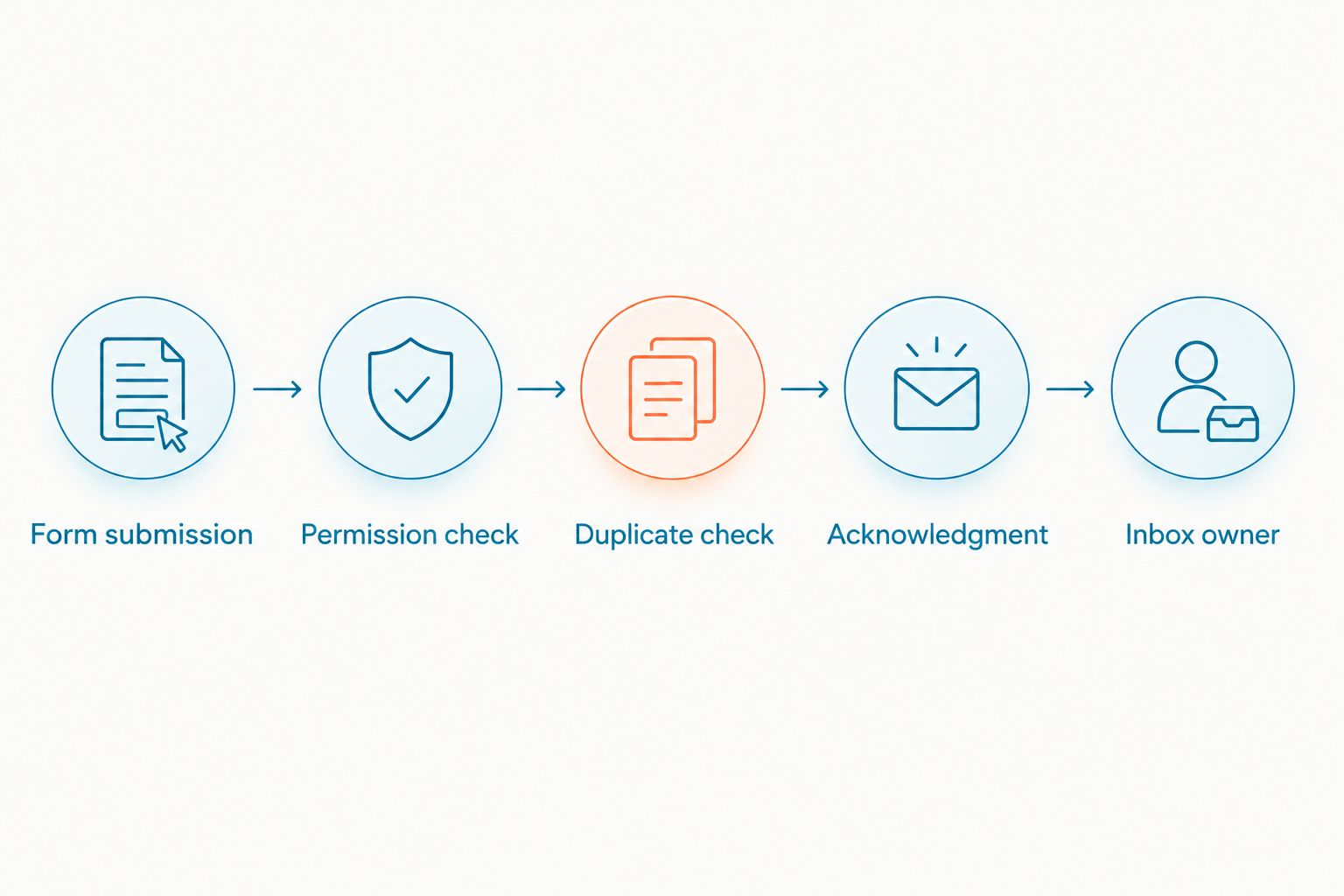
- Check whether the lead identifier already has a completed acknowledgment record. If it does, stop this sending path.
- Check the permission decision and suppression status again immediately before sending. This prevents a delayed job from ignoring a newer opt-out.
- Send an acknowledgment from the business texting number through your verified messaging route. Identify the business, reference the inquiry, and ask a useful question.
- Record the sending service's message identifier and result. Keep failed attempts separate from confirmed sends so a retry does not create an unnecessary second acknowledgment.
Expected result: An eligible lead receives 1 acknowledgment text, and the record shows whether the sending service accepted or rejected it. Acceptance is not proof that the customer read the message.
Write a useful first response
For a service estimate, the structure is simple: identify the business, acknowledge the estimate request, and ask for the service location or another detail needed to proceed. These are drafting instructions, not a statement that any particular business offers estimates.
Keep the message focused. Do not claim a technician is dispatched, an appointment is booked, or a quote is ready unless the underlying system has confirmed that event.
After hours, explain the next step without inventing a callback deadline. An acknowledgment should distinguish an automated receipt from a human response. Follow the wording and opt-out requirements approved for your sending program.
Route the conversation
- Verify that an incoming reply appears in the team inbox with enough context to connect it to the lead.
- Assign an owner using the location, service category, or account responsibility your team actually follows.
- Define a fallback owner for records that do not match a routing rule. An unassigned conversation is not a completed handoff.
- Stop automatic intake prompts when a team member takes responsibility. Preserve the previous messages so the customer does not have to repeat the request.
Expected result: A customer reply reaches an accountable person with the original inquiry attached. VirtualText supplies the shared-inbox part of this approach; verify the connector's behavior before treating assignment or synchronization as automatic.
The sequence below separates sending permission from delivery and ownership. Each stage has its own failure path.
Launch testing
Use 5 test leads before turning on your 2026 workflow. These cases test behavior, not a promised success rate:
- Eligible submission: Submit a valid number with the required permission. Confirm that the acknowledgment arrives and its reply reaches the inbox.
- Missing permission: Submit a record that fails the permission rule. Confirm that it enters review without sending a text.
- Repeated event: Replay the same lead identifier through your test route. Confirm that it does not send another acknowledgment.
- Invalid number: Submit an unusable number. Confirm that the failure is visible and the record remains available for review.
- After-hours reply: Reply while the usual owner is unavailable. Confirm that the fallback handling matches your documented process.
Use 2 team members for the ownership test: one checks the assigned conversation, and the other checks shared visibility. Do not test only from the administrator's account; the person answering leads needs working access too.
Launch only after the reply path works. A successful outbound test proves the sending action, not the complete customer conversation.
Follow up when a lead is updated
An adjacent workflow starts when a team member changes an existing lead's status. Use it to acknowledge a confirmed next step, rather than repeating the original form response.
| Workflow | Best for | Benefit | Limitation |
|---|---|---|---|
| New-submission acknowledgment | Confirming receipt of a permitted inquiry | Starts the conversation without manual copying | Does not confirm an appointment or service commitment |
| Status-change notification | Communicating a verified next step | Keeps the customer informed after intake | Depends on accurate status updates and continued sending permission |
For the second workflow, choose a meaningful transition, such as an appointment becoming confirmed in your scheduling system. Verify that the underlying event occurred before composing the notification.
Check permission and suppression status again. Then record the transition identifier or equivalent event reference so repeated updates do not resend the same notification.
Do not trigger a text from every edited field. Correcting a spelling mistake is not a customer milestone. In 2026, keep new-lead acknowledgment and status notifications as separate workflows with separate message purposes.
This variant requires a supported event from the system holding the status. A manually maintained spreadsheet needs a different connection from a scheduling platform; verify that connection before adding the variant.
Troubleshooting
The connector receives no lead
Check account access, Page permissions, and the form selected in the trigger. Submit a fresh test lead after correcting the configuration, then inspect the connector's event history. Confirm the source event arrives before troubleshooting the texting action.
The same lead receives repeated texts
Check whether retries reuse the same lead identifier and whether the acknowledgment result is saved. Put the duplicate check immediately before sending. If a send times out, inspect the sending service's record before retrying; a timeout does not establish that nothing was sent.
The text fails to send
Inspect the actual error from the sending service. Check number formatting, texting enablement, required registration, and suppression status according to that provider's requirements. Do not repeatedly retry an invalid or opted-out number.
Replies appear without an owner
Check the assignment rule and fallback owner. Confirm that the owner can access the inbox and that the contact record preserves the original request. Test with the team member's account, not just the account that built the connection.
A reply starts another acknowledgment
Check that the acknowledgment trigger listens for new form submissions rather than new messages or generic contact updates. Keep inbound replies on the conversation-handling path. A reply is evidence that the customer is already in the conversation, not a fresh advertising lead.
Customize your workflow
Expand only after the original route passes testing. Add another form, another service category, or another owner while keeping the same permission and duplicate checks.
VirtualPBX remains the business-phone parent brand; VirtualText is the separate SMS, webchat, and shared-inbox offer. Shared messaging helps teammates see the conversation, but it still needs clear ownership and a verified connection to the lead source.
For your 2026 operating review, compare submitted leads, eligible records, attempted sends, failures, replies, and assigned conversations. Use your actual records. Do not treat every submitted phone number as a reachable, permitted SMS contact.
FAQ
How do I automate Facebook Instagram lead text follow up?
Connect a new Meta instant-form submission to a verified messaging route, check SMS permission, prevent duplicate sends, and assign the reply. Test both outbound delivery and the incoming reply before enabling the workflow.
Can I text everyone who submits a Facebook lead form?
No; collecting a phone number does not establish permission for every type of text. Review the form disclosure, message purpose, sending method, and suppression rules before automating follow-up.
Does VirtualText automatically connect to Facebook and Instagram lead ads?
Verify a supported connection before designing the workflow around automatic lead import. VirtualText combines SMS, webchat, and a shared team inbox, but those functions do not by themselves establish a Meta lead-ad integration.
Is an Instagram direct message the same as a lead-form submission?
No; an Instagram direct message and a submitted lead form are different events. Use a trigger that matches the actual source, and do not assume an SMS connector also handles social-media conversations.
How quickly should the first lead text arrive?
Send the acknowledgment after the required permission and duplicate checks pass. Measure elapsed time in your own workflow instead of promising a delivery time that the connected services have not established.
How do I stop duplicate lead follow-up texts?
Use the submission's lead identifier to check whether an acknowledgment has already been sent. Save the sending result and inspect uncertain attempts before retrying.
What should an after-hours lead text say?
Identify the business, acknowledge the specific request, and explain the next step. Do not claim that a person has answered, an appointment is confirmed, or service is dispatched unless that is true.
Can a lead status change trigger another text?
Yes, when the system holding the status supports a verified event and the message meets your sending requirements. Trigger from a meaningful transition, not every edit, and prevent repeated notifications for the same event.
One last thing
Test an opt-out after the lead has entered the workflow but before a delayed follow-up sends. This catches a permission problem that a successful first-message test misses. The latest suppression decision must control the next send, not just the decision saved at intake.