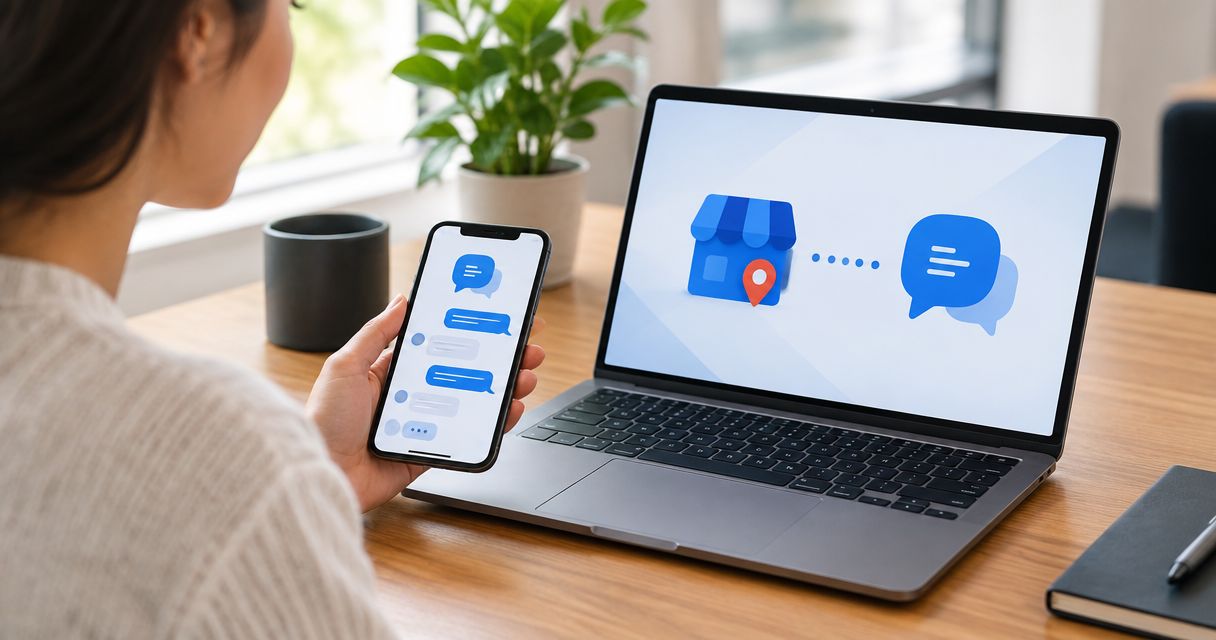
Instead of copying Google inquiries into a separate inbox, use a Google Business Profile text messaging integration to send customer texts to your VirtualText business number and shared team inbox. In 2026, the setup path is Google’s Text message option where your profile supports it—not the retired Google-hosted chat service.
- Google Business Profile text messaging integration uses a text-enabled business number, not the retired Google chat inbox.
- VirtualText by VirtualPBX suits small service teams handling business SMS and webchat in a shared inbox.
- Confirm your profile has the Text message option before changing any customer-facing settings.
- Test incoming messages, outgoing replies, and team ownership before publishing the texting number.
Why this matters
A customer finds your business on Google and wants to ask a quick question. Your team needs that question in the inbox it actually checks, not on an employee’s personal phone.
VirtualText by VirtualPBX is best for small service teams that need business SMS and website chat in one shared inbox. The platform combines SMS, webchat, a shared team inbox, and an AI agent. The supplied VirtualText offer is $89 per month; keep that separate from the parent brand’s business phone plans.
The distinction matters: this task concerns VirtualText, not replacing your phone system. VirtualPBX is the parent brand, while the workflow below connects a customer-facing Google texting entry point to a business SMS number.
For your 2026 setup, separate the entry point from the delivery channel. Google helps the customer start a text; SMS delivers that message to the number you configure. This guide does not depend on a Google account connector inside VirtualText.
Before you start
- Profile access: Have owner or manager access to the correct Google Business Profile. Confirm the business name and location before editing contact details.
- A working SMS destination: Have access to VirtualText and a business number confirmed to receive and send SMS through it. Test that number directly before putting it on Google.
- The eligibility gotcha: Open your profile’s contact settings and look for Chat and Text message. Google’s messaging options depend on profile eligibility and region; a verified profile does not guarantee this setting appears.
Do not change your primary calling number just to add texting. A public phone number and a messaging destination serve different purposes. Keep your existing calling setup intact unless you have separately planned and tested a number change.
Also identify the person who handles incoming messages. A shared inbox gives teammates access to conversations, but it does not decide your business’s staffing rules. Choose a primary responder and a backup before customers start using the channel.
Choose the customer entry point
There are two practical paths for this 2026 workflow. Use the direct texting option when Google exposes it; use your website’s existing contact experience when it does not.
| Path | Best for | Advantage | Limitation |
|---|---|---|---|
| Google’s Text message option with a VirtualText-enabled number | Customers who want to start an SMS conversation from the profile | Sends the inquiry toward your business texting number without a website visit | Requires the profile’s texting setting and a working SMS destination |
| Profile website link leading to VirtualText webchat | Businesses whose profiles lack the texting option | Gives visitors a website-based conversation path | Requires a website visit and a working webchat installation |
Neither path restores Google’s retired native chat inbox. Avoid instructions that tell you to enable the old messaging inbox or connect an obsolete Google Business Messages channel.
For the website path, the customer moves from Google to your site before starting a chat. That is a lead-response workflow, not a direct Google-to-inbox messaging connection. Label it accurately in your internal setup notes.
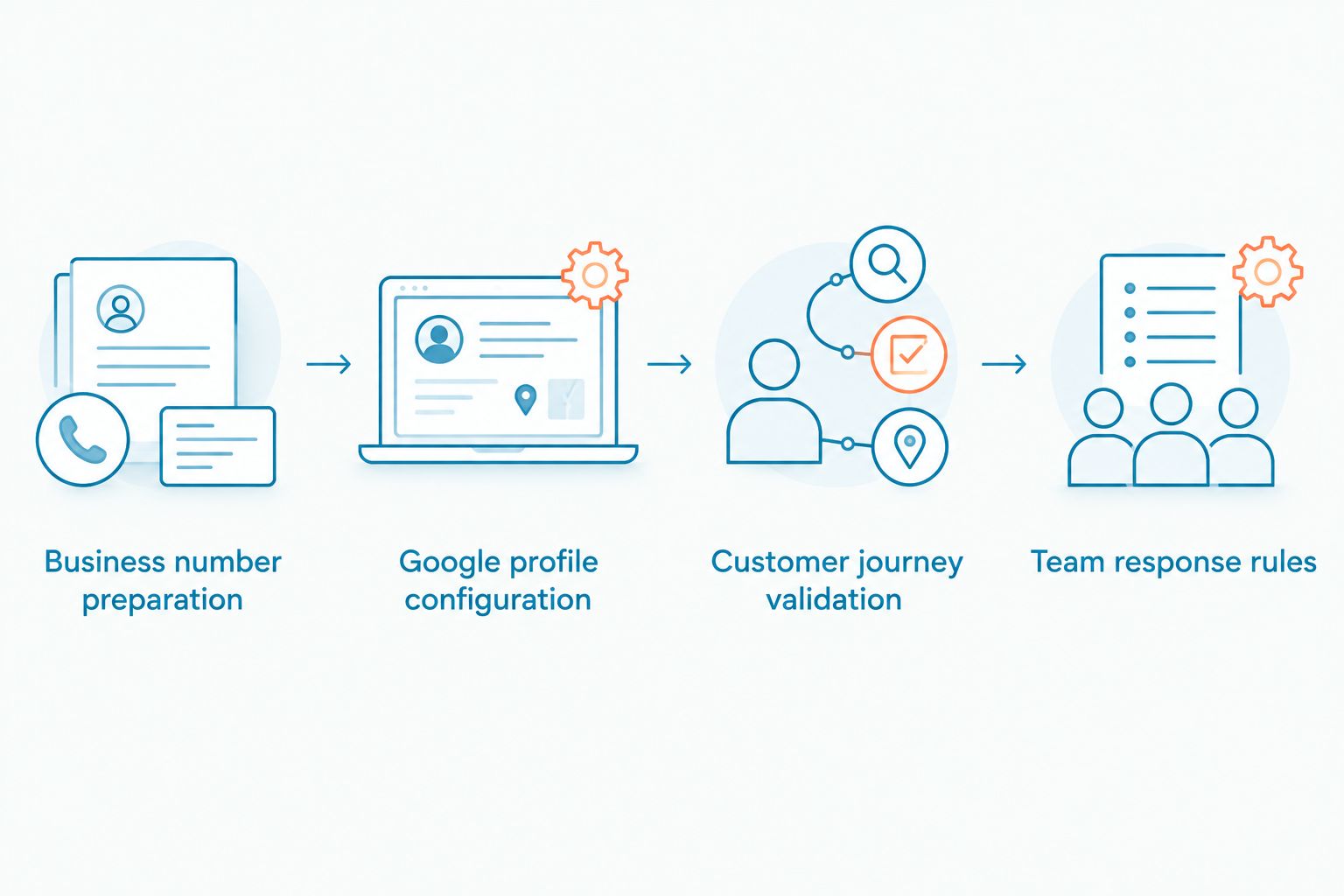
Business number preparation
- Open your VirtualText account and identify the business number intended for customer texting. Use the number already associated with your account’s SMS service, not a number copied from an unrelated phone bill.
- Send a test text from a separate mobile phone to that number. Confirm that the message appears in the shared inbox your team will monitor.
- Reply from the shared inbox. Confirm that the separate phone receives the reply from the intended business number.
- Ask your backup responder to locate the conversation. Agree on who replies and how the backup recognizes an unanswered inquiry.
- Record the exact number, including its country code, in your setup notes. Use that record when editing the Google profile.
Expected result: You have proved that the destination receives customer texts, sends replies, and is accessible to the people responsible for responding.
Do not publish a number that only passes the incoming test. A customer needs a two-way conversation. If the reply fails, resolve the SMS setup with support before editing Google.
Use 3 test messages as a simple acceptance check: an initial question, your business reply, and the customer’s follow-up. This is a suggested test sequence, not a delivery-speed benchmark or a platform limit.
Google profile configuration
- Sign in to the Google account that manages the business. Find the correct Business Profile in Google Search or Maps.
- Select Edit profile, then open Contact.
- Find Chat. Open the messaging dropdown and select Text message if that option appears.
- Enter the business number you just tested. Check every digit against your setup notes, including the country code.
- Select Save. Review the saved contact information and follow any verification or review instructions Google displays.
- Inspect the public profile separately from the management view. Look for the customer-facing messaging action rather than assuming the saved setting is already visible.
Expected result: The profile’s texting destination contains your tested business SMS number, and the public profile offers the supported messaging action once Google publishes the change.
If Chat or Text message is absent, stop this path. Do not substitute a different field, place an SMS link in an unrelated setting, or assume a third-party connector will create a missing Google feature.
In 2026, the presence of the profile setting is your first decision point. The test message arriving in the shared inbox is your second. Both must pass before you tell customers they can text you from Google.
Customer journey validation
- Open the public profile on a separate mobile phone. Use a customer view, not just the signed-in management screen.
- Select the messaging action. Check the recipient before sending anything; it must match your tested business number.
- Send a plain service question without personal or confidential information. For example, ask whether the business handles a particular service.
- Find the incoming text in the shared inbox. Have the designated responder send an answer, then verify receipt on the test phone.
- Send a follow-up from the same phone. Confirm that your team can find the conversation history and continue responding.
- Repeat the access check with your backup responder. If you have several locations, confirm that the right location’s team receives the inquiry.
Expected result: A customer can start a conversation from the public Google profile, and your team can complete the exchange through business SMS.
Test with 2 team members when possible: the primary responder and the backup. This checks the operating process as well as delivery. It also reveals whether teammates understand who owns the next reply.
Record the test date and the outcome in your 2026 setup checklist. Keep the record factual: recipient matched, inbound message arrived, reply arrived, and backup found the conversation. Do not treat a single successful test as a promise that every future message will arrive instantly.
Team response rules
- Designate 1 conversation owner for each incoming inquiry. A shared inbox should not produce competing replies.
- Write a short first-response template that identifies the business and asks the next useful question. Keep the request limited to information needed for initial routing.
- Define the handoff to a colleague. State what information the next responder needs and who confirms that the handoff is complete.
- Establish an after-hours process. Choose who reviews overnight conversations and how urgent inquiries receive human attention.
- If you use the AI agent, test it with your approved business information. Check that it does not promise an appointment, service, or response deadline your team has not authorized.
Expected result: Every Google-originated text has a clear next action, whether a teammate responds immediately or reviews it later.
The number connects the channel; the response rules make it usable. Neither a shared inbox nor an AI agent replaces a named person responsible for unresolved questions.
The operating sequence is simple: prove the number works, configure the profile, test the customer journey, and assign ownership. Keep those checks in that order.
Website webchat variant
If your Google profile does not offer Text message, direct visitors through the profile’s website link to a page where your webchat works. Keep this alternative distinct from direct SMS routing.
- Confirm that the profile’s website destination is a page your business controls. Open it on a mobile phone and check that customers can find the contact experience.
- Confirm that your VirtualText webchat installation works on that page. Send a test chat and locate it in the shared inbox before changing the profile’s website destination.
- In the profile’s Edit profile contact settings, check Website. Keep the destination accurate and relevant to the business or location.
- Test the entire journey: public profile, website visit, chat submission, and team response.
- Apply the same ownership and after-hours rules used for SMS. Do not assume a website conversation includes a customer’s mobile number or permission for later marketing texts.
Expected result: A Google visitor reaches your website and starts a conversation your team can handle in the shared inbox.
For installation planning, use the guide to set up a webchat widget for a service business site. Avoid publishing a website fallback until the chat itself passes a real customer-view test.
Troubleshooting
The profile has no Text message option
Use the website webchat path instead. Confirm that you are editing the correct profile and have management access, then check the current contact settings. Repeating the same edits will not create a messaging option Google has not exposed for that profile.
The destination number is correct, but texts do not arrive
Test the number directly from a mobile phone, outside Google. If that test fails too, the issue is with the SMS destination rather than the profile entry point. Ask support to check the number’s texting setup and any applicable sender-registration requirements.
Direct texts work, but the profile opens the wrong recipient
Compare the public action’s recipient with the saved setting. Correct the number if it differs, then repeat the customer-view test. Check that you did not accidentally edit another location’s profile.
The setting is saved, but customers cannot see it
Check for a pending review or verification instruction in the management view. Inspect the public profile on the device customers use; management screens and public displays are not the same acceptance test. Do not announce the channel until the public action works.
Messages arrive, but nobody answers
Treat this as an ownership problem. Assign a primary responder, confirm the backup can access the conversation, and review the inbox’s notification settings without assuming a particular default. Test the handoff with an ordinary service question before relying on it after hours.
Customize your workflow
Once the channel works, improve the intake process rather than adding more destinations. Ask which service the customer needs, which location should respond, and whether the inquiry requires a human decision.
Keep sensitive information out of initial SMS and chat requests. For healthcare, insurance, and legal inquiries, use the business’s approved process for confidential details; this setup does not establish regulatory compliance.
For your 2026 maintenance routine, repeat the customer journey whenever you change the texting number, website destination, profile access, or inbox staffing. Preserve the same acceptance checks so a configuration change does not silently break lead handling.
FAQ
Can I connect VirtualText directly to Google Business Profile messaging?
You can route customer SMS to a VirtualText-enabled business number when your Google Business Profile offers the Text message setting. This guide uses that number-based route, not an authenticated Google messaging connector inside VirtualText.
Does Google Business Profile still have its old chat inbox?
No, Google retired its earlier native Business Profile chat service. The Text message option described here is a separate customer entry point that uses your business SMS number.
Why can't I find the Text message setting on my profile?
Google does not expose the same messaging options on every profile. Check the correct profile's contact settings and management access; use website webchat if the texting option is absent.
Do I need to replace my business calling number?
No, adding a messaging destination does not require replacing your primary calling number. Test the business SMS number separately and leave your calling setup unchanged unless you have planned a separate migration.
Will Google messages automatically appear in my shared inbox?
SMS sent to a number configured to receive texts through your shared inbox should follow that number's normal delivery path. Verify the complete journey with an incoming message, a business reply, and a customer follow-up before publishing the channel.
Can I use webchat when my Google profile does not support texting?
Yes, customers can follow the profile's website link and start a chat on your site. That requires a working website chat installation and is not a direct Google messaging integration.
Does adding texting give me permission to send marketing messages?
No, adding a texting destination does not establish consent for marketing messages. Keep service replies separate from promotional messaging and follow the consent requirements that apply to your business.
One last thing
The strongest final test is a reply, not a saved setting. Open your public profile as a customer, send a question, and have the backup responder answer it. That checks the entry point, delivery, access, and ownership in one practical exercise.