Instead of copying Google Ads inquiries between phones and chasing appointment details, send ad visitors to a mobile landing page with a text button, route their messages into a shared inbox, and assign someone to confirm the job. This 2026 workflow uses VirtualText, the SMS and webchat offer from VirtualPBX, with a flat-rate subscription of $89 per month.
- Google ads click to text lead capture works through a landing-page text button and a monitored SMS inbox.
- VirtualText combines SMS, webchat, and a shared team inbox for small-business service teams.
- A text-button tap is not a received message, and a received message is not a booked job.
- Assign one conversation owner and record confirmed appointments separately from initial inquiries.
Why this matters
An ad visitor who wants to text needs a working destination and a clear next step. A dispatcher needs the service request, location, and appointment details. Without that handoff, your advertising and scheduling become separate processes.
VirtualPBX's VirtualText is best for small service teams that need SMS and webchat inquiries in a shared inbox. Its limitation in this workflow is equally important: a shared inbox does not replace the calendar or dispatch record that confirms a booking.
Build the 2026 workflow around three distinct actions: opening the messaging app, sending an inquiry, and confirming an appointment. Measure them separately. Otherwise, a button tap can look like a customer when nobody has actually contacted you.
Before you start
- Prepare access and ownership. You need Google Ads editing access, permission to update the landing page, a VirtualText account, and access to the calendar or dispatch system used for bookings. Name the person responsible for incoming inquiries.
- Verify the texting destination. Use a business number enabled for SMS and test incoming messages before publishing the button. Ask your provider which registration and consent requirements apply to your business messaging; review the guide to business texting regulations.
- Catch the attribution gap early. An SMS conversation does not automatically inherit the Google Ads click identifier from the landing page. Preserve advertising data on the website, and do not assume a native Ads-to-inbox connection or automatic booking integration.
This guide uses a website text button, not a Google Ads messaging feature. You control the landing page and message destination. Your website editor and inbox determine the exact configuration controls, so use the settings that correspond to each task below.
Landing-page entry point
Choose the contact route
Start with the customer's device and the information your team needs. SMS and webchat are adjacent entry points, but they behave differently.
| Entry point | Best for | Advantage | Limitation | Recommendation |
|---|---|---|---|---|
| Landing-page text button | Mobile visitors who want to continue by SMS | Opens a conversation through the visitor's messaging app | Opening the app does not send the message; device handling varies | Use as the main mobile texting route |
| Website webchat | Desktop visitors and people who prefer staying on the page | Starts the conversation without opening an SMS app | Continuing by SMS requires contact details and appropriate consent | Use as the alternative contact route |
VirtualText supports SMS, webchat, and a shared team inbox. That makes it relevant to both routes. Do not describe it as a guaranteed booking engine: your team still needs a defined appointment-confirmation process.
Configure the destination
- Choose the landing page. Use the page that matches the advertised service. Keep the service description, service area, and contact instructions consistent with the ad.
- Add a text button. Use Text us about your job as the button wording. Configure its destination with the standard
sms:URI scheme and your verified business texting number. - Keep a visible alternative. Show the business number in readable text and provide webchat where configured. Desktop visitors should not depend on an installed messaging application.
- Test the mobile handoff. Open the page on the devices your customers use. Check the recipient number, then send a real test message and confirm that it reaches the inbox.
A prefilled message is optional. Test it on each device before relying on it, because support and URI handling vary. Keep the page useful even when the visitor has to type the first message.
Expected result: A mobile visitor can open a message addressed to the correct business number. Your inbox receives the message only after the visitor sends it.
Connect the ad to the page
- Open the relevant ad in Google Ads and set Final URL to the tested landing page.
- Review the ad wording. Promise a way to request service, not an immediate appointment unless your operation can actually confirm one.
- Open the landing page directly and test the complete contact route again. Check that redirects and mobile layouts do not hide the text button.
- Publish only after the person monitoring the inbox confirms that the test conversation arrived.
For your 2026 campaign, treat a functioning page as the first gate—not the final success condition. A visible button is insufficient if messages reach an unattended destination.
Expected result: The ad directs visitors to the correct service page, and the page provides a verified route into your business inbox.
Shared-inbox intake
Define the information handoff
Use a short intake checklist instead of asking customers to write an entire job description at once. Start with 5 intake fields:
- Name: Who is requesting the work?
- Service: What help do they need?
- Location: Is the job within your service area?
- Timing: When do they want service?
- Contact permission: Which channel can you use to continue this inquiry?
These are recommended fields for your process, not names of built-in VirtualText controls. Record them using the inbox, notes, or booking record your team has configured.
- Assign an owner. Make one team member responsible for the conversation. A shared inbox should improve visibility without making responsibility anonymous.
- Ask the next necessary question. If the visitor already described the problem, ask about location rather than repeating the service question.
- Identify exceptions. Send requests outside your service area, urgent safety concerns, and questions requiring specialist judgment to the appropriate person.
- Record the handoff. Give the scheduler the intake details and a reference to the conversation. Avoid copying unnecessary personal information into multiple systems.
For healthcare or other sensitive inquiries, keep initial messages focused on scheduling and basic contact information. Do not ask customers to send detailed medical records through an ordinary SMS intake flow.
Expected result: Every genuine inquiry has an accountable owner and enough information for the next decision.
Set an after-hours boundary
VirtualText includes an AI agent, but automation needs instructions that match your operation. Give the agent approved service descriptions, service-area boundaries, and the conditions that require a human handoff.
Tell customers when the team will respond using your actual staffed schedule. Do not promise a callback time your team has not agreed to meet. An after-hours acknowledgment should explain what happens next without implying that a technician has been dispatched.
Use automated intake to collect a request, not to invent an appointment. When a calendar connection has not been verified, leave booking confirmation with the scheduler.
Booking confirmation
A job is booked when your scheduling process contains the agreed appointment, not when the customer asks for a time. Keep that boundary explicit in your 2026 reporting and customer messages.
- Check the scheduling record. Review the calendar or dispatch system before offering an appointment. Include the job location and the staff or equipment requirements relevant to your operation.
- Offer a real appointment. Use the service date and arrival window that your scheduler has approved. Distinguish a requested time from a confirmed time.
- Record customer acceptance. Once the customer agrees, create or update the booking record. Give the appointment 1 booking record as its source of truth.
- Send the confirmation. Include the service, location, agreed date, and arrival window. Explain how the customer should request a change.
- Close the intake loop. Record the outcome in your lead log so another team member does not continue treating a booked customer as an unanswered inquiry.
Expected result: The inbox conversation and scheduling record describe the same confirmed appointment.
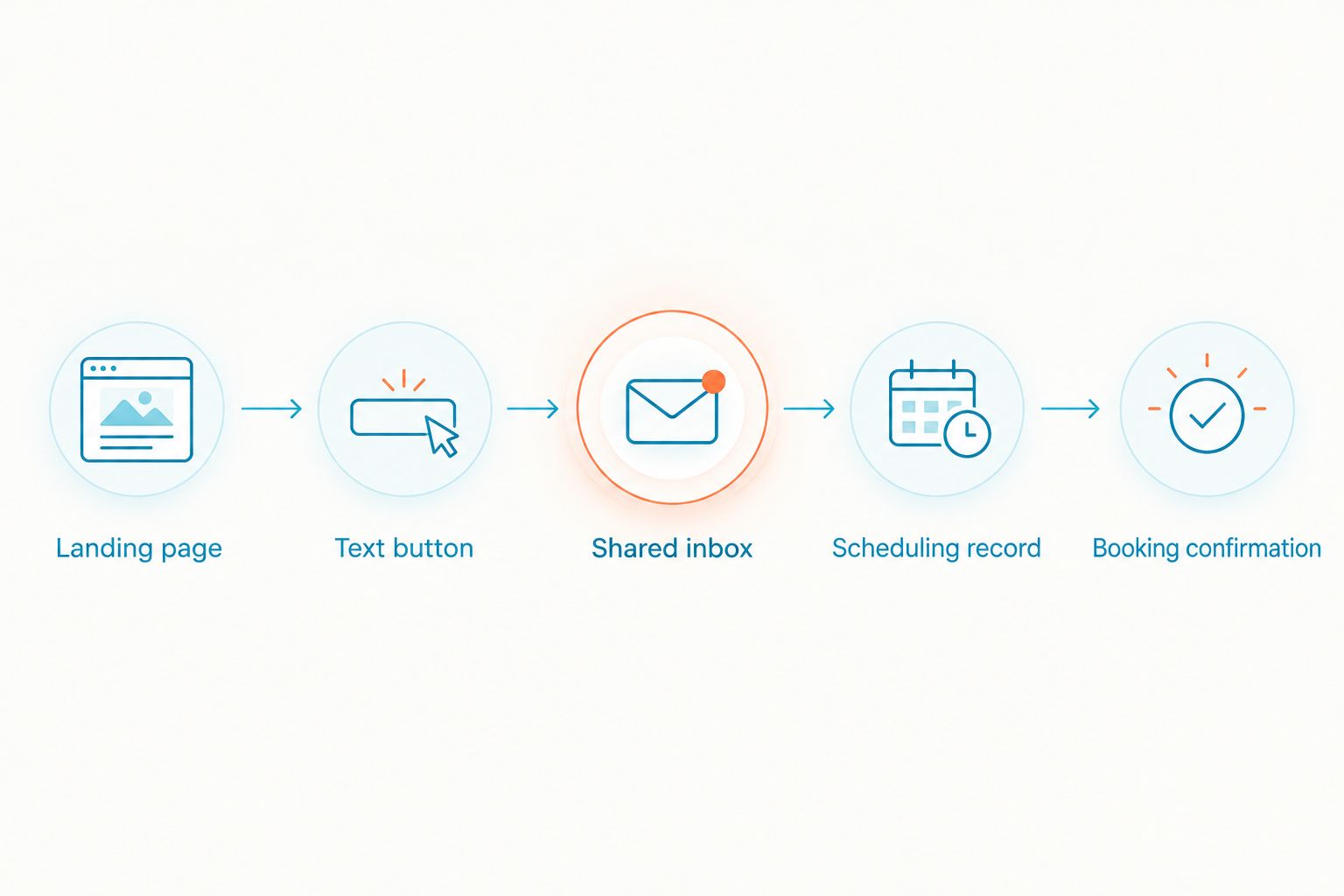
The sequence below keeps intake and booking separate. Each transition requires information or action, rather than assuming that a message automatically produces a job.
Test the complete handoff
Send 2 test messages before launching: one during staffed hours and one during your configured after-hours period. These are acceptance tests, not response-time benchmarks.
Check who receives each message, what acknowledgment appears, and who owns the next action. Complete a test booking using clearly marked internal test details, then remove it from the live schedule.
For VirtualPBX customers evaluating VirtualText, this test establishes the operational fit: can your team receive, qualify, and confirm an inquiry without losing responsibility between people?
Campaign measurement
Separate interest from outcomes
Google ads click to text lead capture needs more than a button-click conversion. Set up a measurement plan with distinct definitions:
| Measurement | What it means | What it does not prove |
|---|---|---|
| Text-button click | A visitor activated the texting link | The visitor sent a message |
| Received inquiry | Your inbox received a service request | The request qualifies for your business |
| Qualified lead | Your team accepted the request for follow-up | An appointment is confirmed |
| Booked job | Your scheduler recorded an agreed appointment | The job has been completed |
- Track the website interaction. Configure your analytics or tag-management setup to record text-button clicks. Test the event before using it in reporting.
- Preserve source information. Keep campaign parameters and applicable click identifiers through the landing-page journey. SMS does not carry those website values into the inbox by default.
- Maintain the outcome log. Record the inquiry, its source evidence, and its booking outcome. Do not assign a campaign based only on a customer's name or an approximate time.
- Import outcomes only through a supported process. Use Google Ads conversion import methods when your records contain the required identifiers, permissions, and fields. Validate the match before relying on imported bookings.
Expected result: Your 2026 reports distinguish button activity from inquiries and bookings without claiming an unverified automatic connection.
If you cannot reliably join a message to an ad click, report the outcomes separately. An honest attribution gap is more useful than a precise-looking campaign report built on guesses.
Variant: update the conversation when the appointment changes
The adjacent workflow starts after booking. When a customer reschedules, the calendar changes first; the customer conversation follows.
- Update the existing scheduling record instead of creating a second appointment.
- Notify the conversation owner that the confirmed details changed.
- Send the revised date or arrival window through the channel the customer agreed to use.
- Record the revised confirmation and remove obsolete reminders from your process.
Run these steps manually unless you have verified a supported connector between your scheduling system and messaging workflow. If you automate them, test cancellation and rescheduling as separate events.
Expected result: The customer receives the current appointment details, and your team does not work from an outdated confirmation.
Troubleshooting
The text button opens the wrong destination
Inspect the sms: recipient and test the link on a real mobile device. Remove formatting or extra characters introduced by the website editor. A page preview alone does not verify message delivery.
You see button clicks but no inquiries
Test whether the messaging application opens correctly and whether a sent message reaches the inbox. Visitors can open the app and leave without sending; count clicks and received messages separately rather than treating the difference as a delivery failure.
Two people answer the same customer
Give each active conversation one owner and make the handoff visible before another person replies. Establish who covers breaks and after-hours follow-up. Shared access without ownership creates duplicate responses.
Automated intake promises an unconfirmed appointment
Remove appointment-confirmation language from the intake instructions. Require a verified scheduling record before confirmation. Audit the agent's approved instructions for promises about dispatch, arrival times, or services your team has not authorized.
Bookings appear twice in reports
Check whether the same appointment was recorded through both a manual log and an import. Use a consistent booking identifier and define how changes update the existing outcome. Do not count a reschedule as a new job.
Customize your workflow
Start with one advertised service and one person accountable for the inbox. Expand to additional services only after the initial route passes the full contact-to-booking test.
VirtualText's advantage is shared visibility across SMS and webchat. Its trade-off is that your team still needs intake rules, coverage, and scheduling discipline. Software cannot resolve an undefined handoff.
For VirtualPBX's small-business messaging workflow, add complexity only when it solves a specific problem: location-based ownership, specialist escalation, or appointment updates. Keep unrelated promotions outside the service-inquiry conversation unless the customer has separately agreed to receive them.
FAQ
How do I set up Google Ads click to text lead capture?
Send the ad to a landing page with a tested SMS button, then route received messages into a monitored business inbox. Assign a conversation owner and confirm appointments in your scheduling system.
Does this workflow require a Google Ads messaging feature?
No. This workflow uses your website as the contact entry point, with a text button that opens the visitor's messaging application.
Does clicking a text button count as a lead?
A text-button click is an interaction, not proof of a received lead. Count the incoming service inquiry separately, and record a booking only after the appointment is confirmed.
Is SMS better than webchat for service inquiries?
SMS is the recommended route for mobile visitors who want to continue through their messaging app. Webchat provides an alternative for desktop visitors and people who prefer to stay on the website.
Can VirtualText automatically book every inquiry?
Do not assume automatic booking from the shared inbox or AI agent alone. Confirm the supported scheduling connection and its behavior, or have your scheduler create and confirm the appointment manually.
How much does VirtualText cost?
The supplied VirtualText subscription is $89 per month at a flat rate. Treat advertising spend and any separate scheduling tools as distinct parts of your workflow planning.
How do I track booked jobs from Google Ads?
Keep booked appointments separate from website clicks and received messages. Use a supported Google Ads conversion import process only when your booking records contain the required matching information and permissions.
What should happen to text leads after hours?
Acknowledge the inquiry, collect basic service details, and explain the next staffed response step. Do not confirm dispatch or an appointment until the scheduling process authorizes it.
One last thing
Test the message that nobody sends. Open the text button, then close the messaging app without sending anything. Your analytics can record that click while your inbox remains empty.
That simple 2026 acceptance test exposes the most consequential reporting mistake in this workflow: treating an opened messaging app as a customer conversation. Optimize for confirmed jobs, while keeping every earlier step visible.